How to Use OpenCode for Free: Beginner Vibe Coding Guide
A beginner guide to using OpenCode for free: setup, models, prompts, and practical tips for AI-powered vibe coding without unnecessary cost.
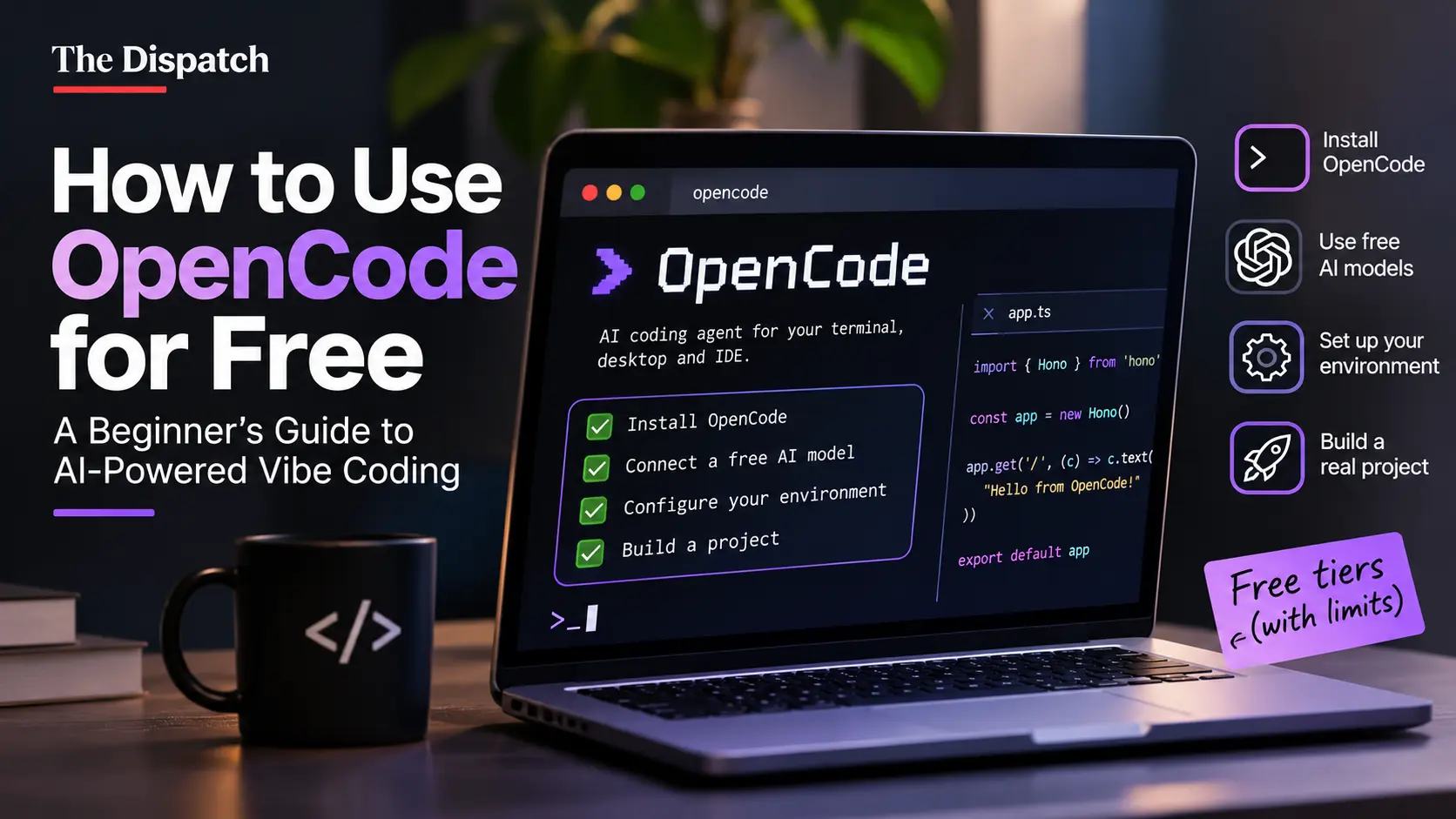
AI coding tools can turn a plain-English request into working code, but subscription prices can be a barrier. OpenCode offers another route: an open-source coding agent that you can connect to free hosted models or use with a model running on your own machine.
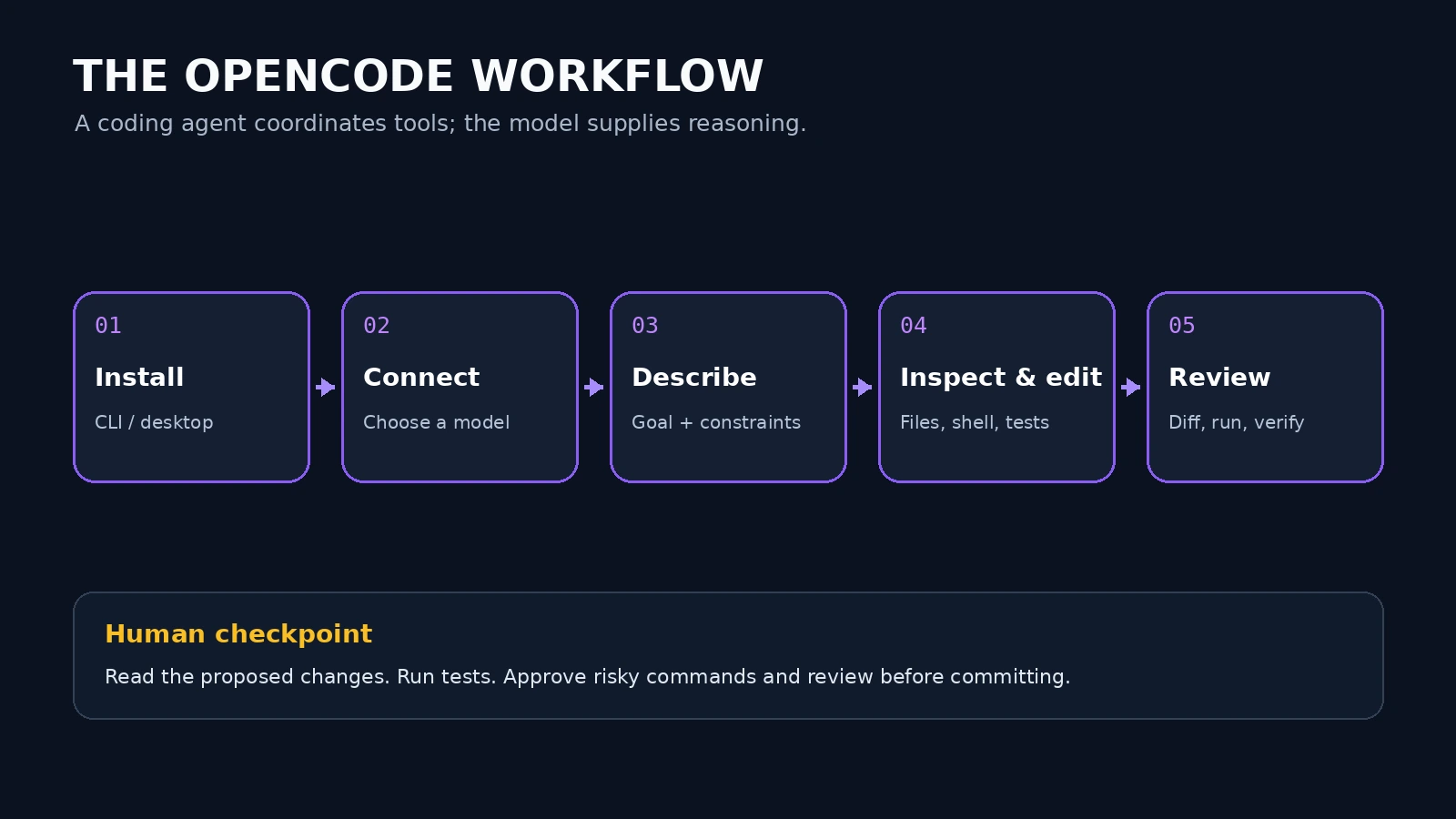
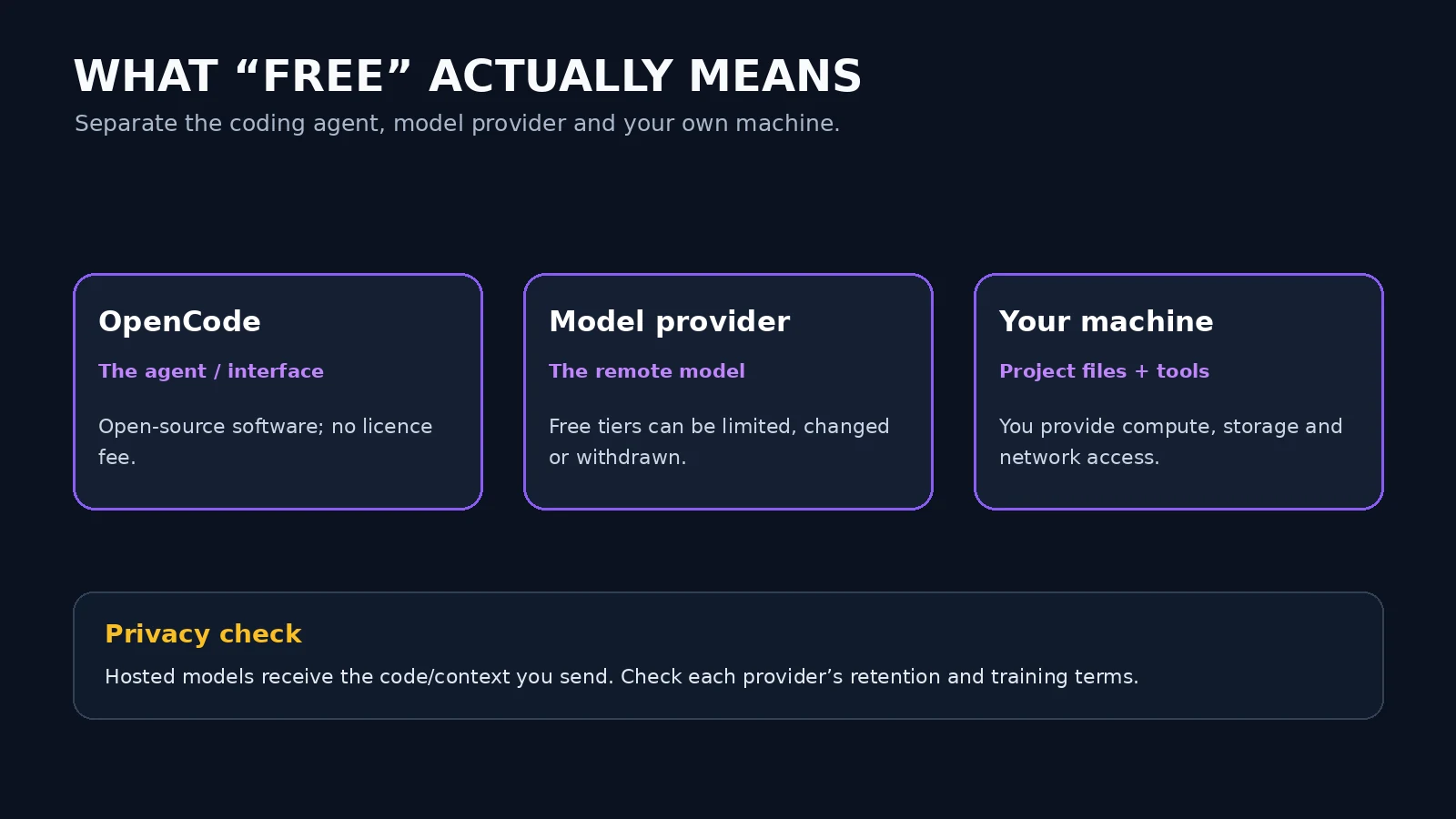
The important distinction is that OpenCode and the AI model are two different things. OpenCode is the agent that reads your project, edits files and can run tools. The model supplies the reasoning. The agent is free to install; the model may be free, rate-limited, promotional or paid depending on the provider and the option you select.
This guide covers a no-cost starting setup, a first project, and the checks that keep AI-generated changes from becoming an expensive debugging exercise.
Documentation checked: November 22, 2026. Model availability and provider terms can change after publication.
1. What is OpenCode?
OpenCode is an open-source AI coding agent available through a terminal interface, desktop app and IDE extension. It can inspect a codebase, answer questions about files, propose a plan, edit code and use tools such as the shell.
It is not itself a large language model. You choose which model or provider powers a session. OpenCode's provider documentation lists support for more than 75 providers and local model runtimes, including Ollama, LM Studio and vLLM.
That separation makes a free setup possible: you do not need to buy a subscription to the agent, and you can select a model that currently has a $0 usage price.
2. Install OpenCode
Choose the installation method for your operating system. The current OpenCode product page lists these v2 CLI options.
Linux and macOS — install script
curl -fsSL https://opencode.ai/v2/install | bashUsing npm
npm install -g @opencode/cliThe current site also lists Bun, pnpm and Homebrew options. Follow the exact command on the official installation page.
Windows
OpenCode provides desktop builds for Windows. For a terminal-based workflow, its documentation recommends using Windows Subsystem for Linux (WSL). Download the desktop app or follow the Windows installation guide.
Once installed, open a terminal in a project directory and start the agent:
cd path/to/your-project
opencode
If you are starting from scratch, create a small practice folder first. Do not point a new coding agent at your most important production repository for the first experiment.
3. Choose a free AI model
OpenCode's model picker is the place to check what is available to your installation and account. Inside the terminal interface, run:
/modelsLook for models marked Free or showing a zero input price. The OpenCode Console catalogue currently lists free options including DeepSeek V4.1 Flash Free, MiMo-V2.6-Flash Free, Nemotron 3.5 Lightning Free, Big Pickle and others. Some are explicitly promotional or available for a limited time.
The list is not permanent. Models can be added, renamed, rate-limited or removed, so do not copy a model ID from an old tutorial and assume it will still work. Use the picker and the live OpenCode Console model list as the source of truth.
If the free catalogue is not visible, use /connect to inspect the providers available to your current OpenCode session and follow the authentication flow shown there. Do not assume every model in the picker is free: the same catalogue can contain paid models. Check the displayed price before selecting one, and do not add credits or enable auto-recharge if your goal is to spend nothing.
An alternative is to connect a provider that offers its own free API tier. That provider sets its own quotas, regional availability and data rules. OpenCode's provider guide explains how to connect accounts and select models. A provider's free tier is not the same thing as unlimited use.
4. Understand the limits before sending code
“Free” usually means that the provider is not charging for eligible model requests at that moment. It does not mean unlimited, guaranteed or private by default.
- Rate limits: Free models may have request, token or daily limits. If one stops responding, check the provider message and try another currently free model.
- Temporary offers: Some models are free while a provider or OpenCode collects feedback. Their terms can change.
- Different capabilities: Models vary in coding quality, context length, speed, tool use and image support. A $0 model may be enough for a small page or a simple bug fix, but it may struggle with a large multi-file change.
- Hosted processing: When you use a hosted model, the relevant prompt and project context are sent to that provider. Read its retention and training terms. OpenCode's Console privacy notes identify exceptions among some promotional models. For example, the Big Pickle free period may use submitted data to improve the model, while NVIDIA's free trial endpoints carry a warning not to submit personal or confidential data.
For private client code, credentials or unreleased product work, do not select a free hosted model until you have checked the exact provider's data terms. A local model through Ollama or LM Studio can keep inference on your own machine, but it requires suitable hardware and may be slower.
5. Start with a small project
For a first exercise, build a simple to-do application. It is large enough to involve real files and state, but small enough to review.
Create a folder and start OpenCode:
mkdir opencode-todo
cd opencode-todo
opencode
If you are working inside an existing project, OpenCode's getting-started guide recommends running /init. It analyses the project and creates an AGENTS.md file containing project context and instructions. Read the generated file before committing it; it should describe the actual project, not assumptions.
Start by asking the agent to plan the work. In the terminal interface, press Tab to switch to Plan mode. Try this prompt:
I want a small responsive to-do app. First inspect the current folder and tell me what is already here. Propose a minimal implementation using plain HTML, CSS and JavaScript. The app should add tasks, mark them complete, delete them and preserve tasks after refresh. Do not edit files yet. List the files you plan to create and how you will test the result.
Read the plan. Correct it if it adds unnecessary frameworks, packages or features. Then switch back to Build mode with Tab and ask it to implement the agreed plan.
A useful follow-up prompt is:
Implement only the approved plan. Keep the code simple and explain each file you create. Run the available checks. If a command fails, show me the error and explain the proposed fix before making unrelated changes.
This is a better starting point than asking an agent to “build me a complete startup” in one sentence. Specific requirements and small steps make the result easier to inspect.
6. Review the changes instead of trusting the output
OpenCode can edit files and run shell commands, so treat its output like a contribution from a junior developer: useful, but not automatically correct.
After the agent finishes:
- Read the summary of files changed.
- Inspect the diff and check that only expected files were modified.
- Open the app in a browser and test each requested behaviour.
- Ask OpenCode to add or run tests for edge cases, such as an empty task, duplicate task names and a page refresh.
- Check the browser console and terminal for errors.
- Use
/undoif a change is wrong, then give a more precise instruction.
For a larger feature, keep the first request in Plan mode. Ask the agent to identify the files it will touch, the assumptions it is making and the tests it intends to run. Approve the plan before switching to Build mode.
You can also refer to files directly with @ in the prompt. For example:
Review @src/auth.ts and explain how login sessions are validated.
Do not modify the file.7. Add guardrails for shell commands and sensitive files
A coding agent's shell access can have the same authority as your user account. It can run commands, modify files and potentially interact with services available on your machine. Do not enable automatic approval just to make the experience faster.
OpenCode v2 supports ordered permission rules in opencode.jsonc. For example, this configuration asks before shell commands, allows routine Git inspection and blocks pushes:
{
  "$schema": "https://opencode.ai/config.json",
  "permissions": [
    { "action": "shell", "resource": "*", "effect": "ask" },
    { "action": "shell", "resource": "git status *", "effect": "allow" },
    { "action": "shell", "resource": "git diff *", "effect": "allow" },
    { "action": "shell", "resource": "git push *", "effect": "deny" },
    { "action": "read", "resource": "*.env", "effect": "deny" },
    { "action": "read", "resource": "*.env.*", "effect": "deny" }
  ]
}
The last matching rule wins, so keep broad rules before narrower exceptions. This is a starting example, not a complete security policy. Review the current permissions documentation before applying it to a real repository. Do not paste API keys into prompts or commit them to Git.
8. Can you use OpenCode without any cloud API?
Yes. OpenCode documents local model support for Ollama, LM Studio and vLLM. If one of these runtimes is already running, OpenCode can discover models at their default local addresses. You can then choose the local model in the model picker.
This route avoids sending prompts to a hosted model provider, but it is not costless in every sense: you need hardware with enough memory and compute, plus electricity and disk space. A small local model may also be less capable than a hosted coding model. Check the model's tool-use and context capabilities before relying on it for agentic coding.
9. A prompt template that works better
When you want OpenCode to make a change, include five things:
- Goal: What should the finished feature do?
- Context: Which files, framework or existing behaviour matter?
- Constraints: What should it avoid changing?
- Acceptance criteria: How will you know the task is finished?
- Verification: Which tests, commands or manual checks should run?
For example:
Goal: Add a dark-mode toggle to the settings page.

Context: Read the existing settings component and theme variables first.

Constraints:
- Keep the current framework and component structure.
- Do not add a new dependency.
- Do not change the authentication flow.

Acceptance criteria:
- The toggle switches between light and dark themes.
- The choice persists after a refresh.
- The control is keyboard accessible.

Before editing, explain the files you plan to change.
After editing, run the relevant tests and summarise the diff.The bottom line
You can start vibe coding with OpenCode without paying for the agent or a model request, provided a suitable free model is available to your account and you stay within its current limits. The most reliable first step is to install OpenCode, inspect /models, choose an option explicitly marked free, and build something small.
The trade-off is that free model access can be temporary, rate-limited or subject to data-use conditions. Keep sensitive code away from hosted models unless their terms are acceptable, and review every change before it reaches your main branch. The useful skill is not getting an AI to write code quickly; it is giving it a clear task and checking that the code actually works.
Official references
AI-assisted content
This story was drafted and/or edited with AI assistance and reviewed before publishing.